For churches
Venues and capture
The gallery's walk can take place in a realistic virtual hall or in your own church building, and each kiosk can open into a 360° view of the family's field. Your church captures its own building and your missionaries send their own field photos.
On this page
What works today #
The admin has no venue screens yet. You can't upload 360° photos or scans, or turn a venue on, from the admin. Every church's gallery walks in the virtual hall today. The other venues already work in the gallery itself, and you can try them all in the demo.
| Venue | In the gallery | Set up from the admin |
|---|---|---|
| Realistic hall | Yes | Nothing to set up; the welcome desk is optional |
| Field views | Yes (demo) | Planned |
| Our building | Yes (demo) | Planned |
| Your building: 3D scan Beta | Not yet | Planned |
What visitors see in each venue is described in Visiting a gallery.
The realistic hall #
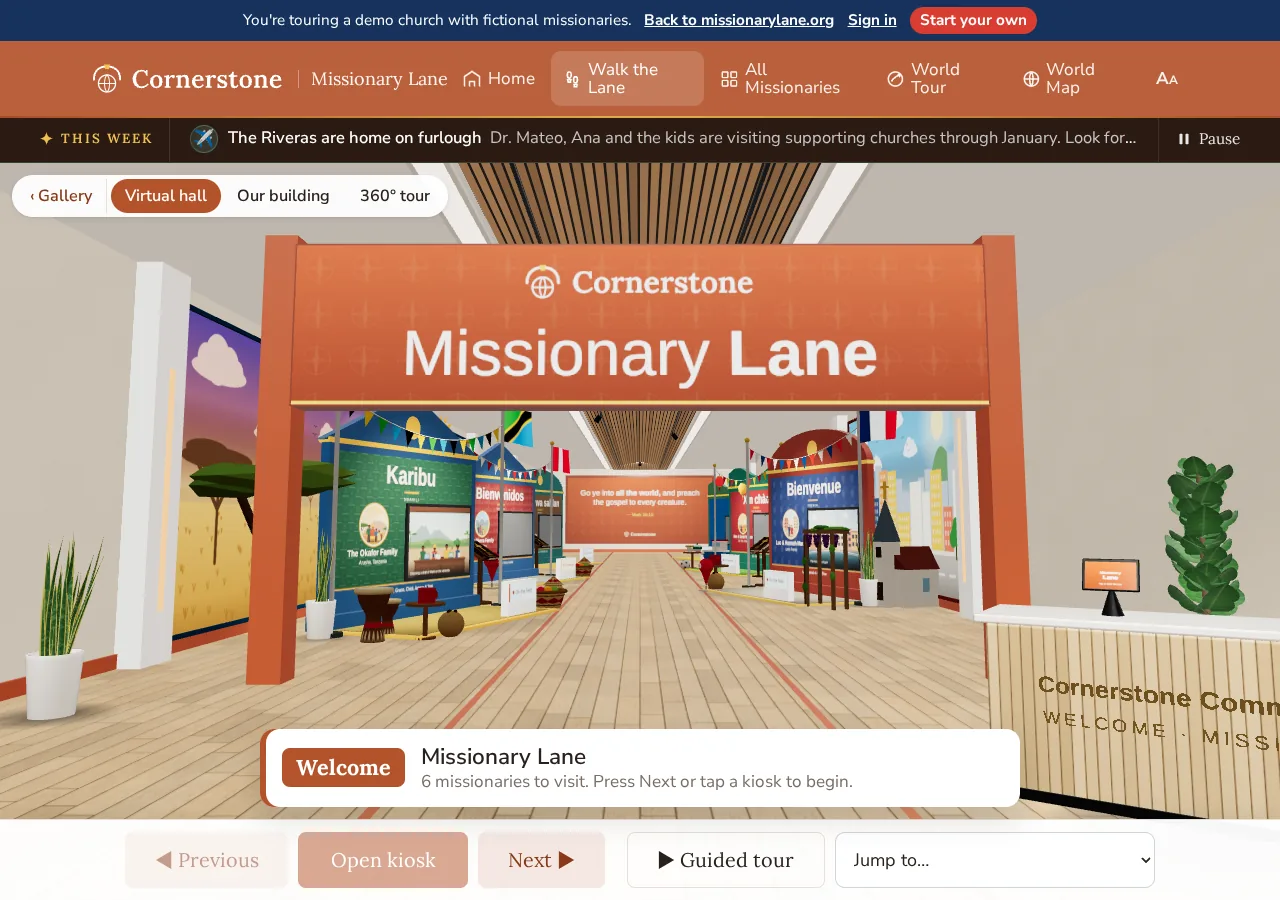
Included in every plan. It uses your kiosks as they are: each Public or Limited missionary gets a booth, in the order of their Position in the gallery, with colours, roof shape and decorations from their Kiosk design. Past 12 kiosks the hall folds into aisles. Phones get a lighter version automatically.
The welcome desk #
A welcome desk stands at the start of the hall with your church's name in brass letters, your logo on its tablet and your colours on its trim. In Settings → Welcome desk you can add any of these; every part is optional:
- Your pastor's photo or picture, shown in a frame on the desk, with their name and title.
- Your missions statement, up to 600 characters.
- A letter from your pastor, up to 6,000 characters.
- A recording of your pastor (MP3, M4A, WAV or OGG, up to 20 MB), with the words of the recording for people who can't listen.
With a photo, statement, letter or recording, visitors tap the desk, or the Welcome from … button at the entrance, to open the welcome; the recording plays when it opens. Without them, the desk just carries your name. In the classic look of the hall, the welcome is a sign standing where the desk would be.
Say whose voice the recording is. A computer-generated voice is shown to visitors with an AI voice tag; your pastor's own voice isn't. The photo and recording are shown to everyone who visits your gallery.
Field views #
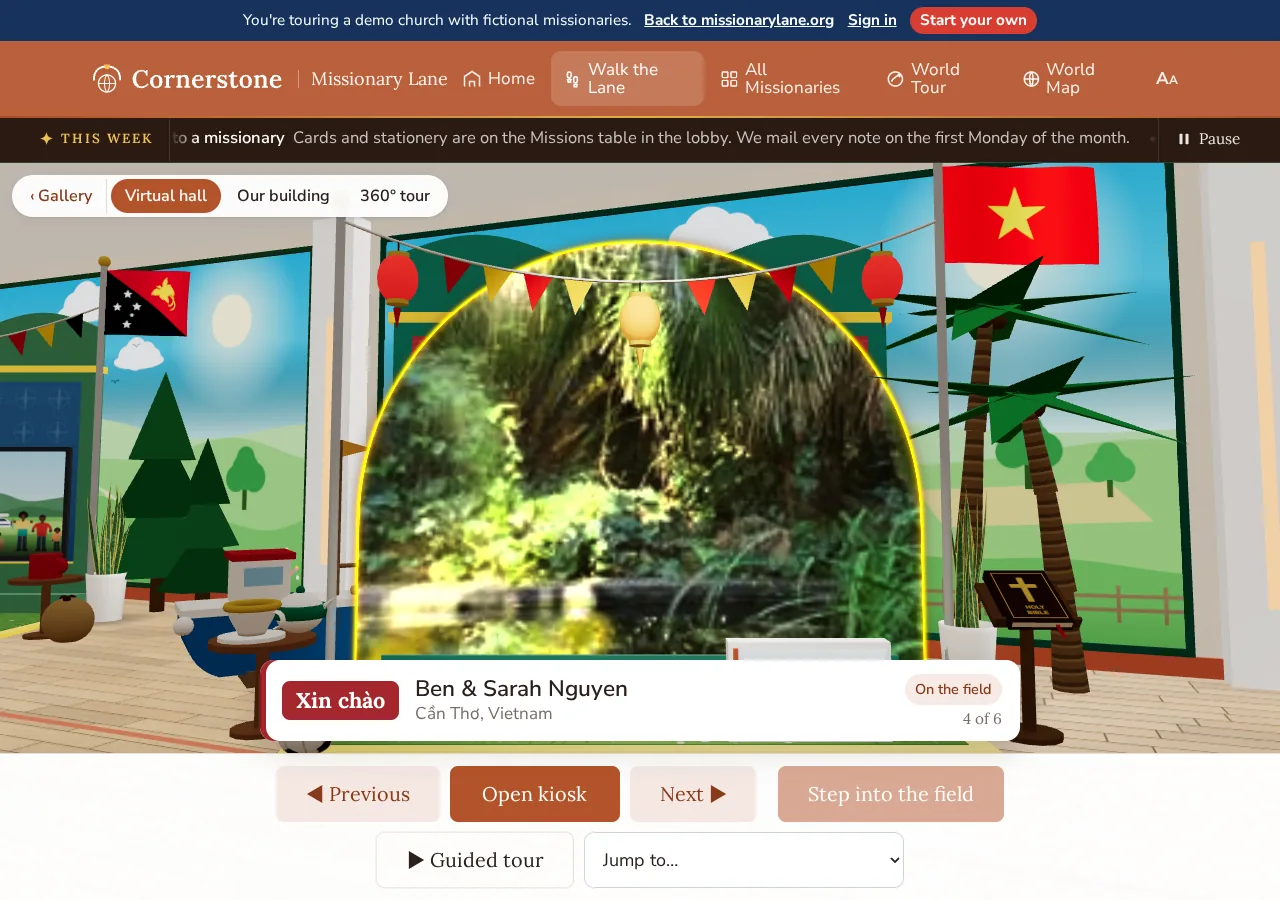
A 360° view of each missionary's city or region, opened with Step into the field. Each view needs one full 360° photo (a JPG twice as wide as it is tall), from one of these sources. The credit line is always shown.
| Source | Notes |
|---|---|
| The missionary's own 360° photo | The best choice. See the missionary guide. |
| Wikimedia Commons | Licence varies by photo; the author and licence are shown. |
| Mapillary | CC BY-SA 4.0; the contributor is shown. |
| Google Street View | Must use Google's own viewer. 5,000 free loads a month, then Google charges $14 per 1,000. |
| Poly Haven | CC0. Used as stand-ins in the demo. |
Never use a view of a family's home or ministry address; use a city centre or a public landmark. Restricted (Limited) kiosks never get a field view, even if one is stored.
Our building #
Put the walk in your own hallways. Our building is a 360° walk through your church that moves like the virtual hall: visitors step forward and back, turn, and click a spot to walk there, gliding from one 360° photo to the next. Panels hang on your walls and roll-up kiosks stand in your foyer and fellowship hall, and each one opens that family's kiosk. A volunteer captures the building once with a 360° camera. The guide to capturing your building covers it step by step.
Earlier plans also offered flat photos of the building. They are no longer offered, because a flat photo can't be walked through; the 360° walk replaces them.
| Method | What you need | Time | Limits |
|---|---|---|---|
| Our building | A consumer 360° camera on a light stand, a spot every 10 to 15 feet | About half a day | 50 spots, 1 GB; 2:1 JPG at least 5,760 × 2,880, up to 50 MB each |
| 3D scan Beta | A recent phone and a free scanning app that exports SPZ or Gaussian-splat PLY | A few hours | 3 scans, 1 GB; up to 300 MB a scan |
Before capturing anything: choose 5 to 15 spaces, turn on every light, clear carts and signs, capture when the building is empty so no one appears without being asked, and do it in one session so the light matches.
When the venue screens arrive, the guide describes uploading under Venue in the admin, where the AI levels and prepares each 360° photo, links the spots in walking order, finds walls and floors, and proposes where panels and kiosks go for you to adjust. Planned
Add-ons and limits #
Each venue is an add-on, included in some plans. See Plans, credits and add-ons for prices.
- Our building includes 2,000 views a month and the 3D scan 1,000 scan views. Views beyond that are billed at our published rates plus 20%, about $4.30 and $6.50 per extra 1,000. A visit counts once per browser session.
- When a venue's add-on is paused or unpaid, or your monthly pay-as-you-go limit is reached, the walk falls back to the virtual hall. Nothing is lost.
- Self-hosted galleries include every venue.
Done-for-you setup #
Send what your church captured and the Missionary Lane team places the panels, links the scenes and fine-tunes the result, for a one-time fee: Our building $249, 3D scan $349. The team works from your photos and scans and doesn't travel to take them.