For visitors
Visiting a gallery
A church's gallery opens at its own address, such as gracechurch.missionarylane.org. It works in any modern browser on a phone, tablet, computer or TV, and the 3D hall also works in a VR headset. Nothing needs to be installed, and visitors never need an account.
On this page
The gallery #
The welcome page shows the church's name, this week's announcements and four ways in:
| Choice | What it does | Best on |
|---|---|---|
| Walk the Lane | A walk past every kiosk, in a 3D hall or in the church's own building. | Computer, TV or VR headset |
| All missionaries | A list of every family with photos, a search box and region filters. | Phone |
| World Tour | A narrated flight around the globe from the church to each family. | Any screen, with sound on |
| World map | A pin for each family. Tap a pin, then Visit kiosk. | Any screen |
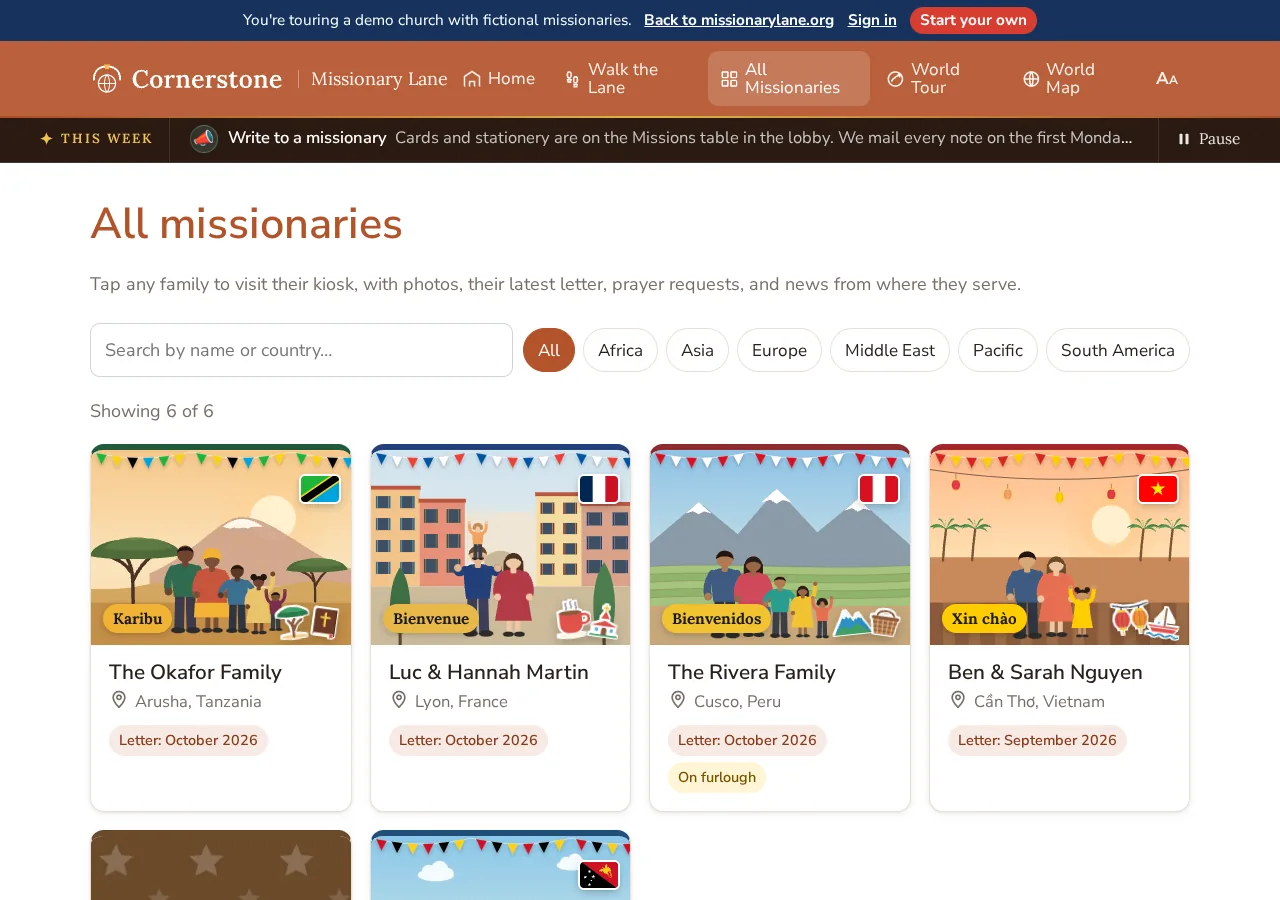
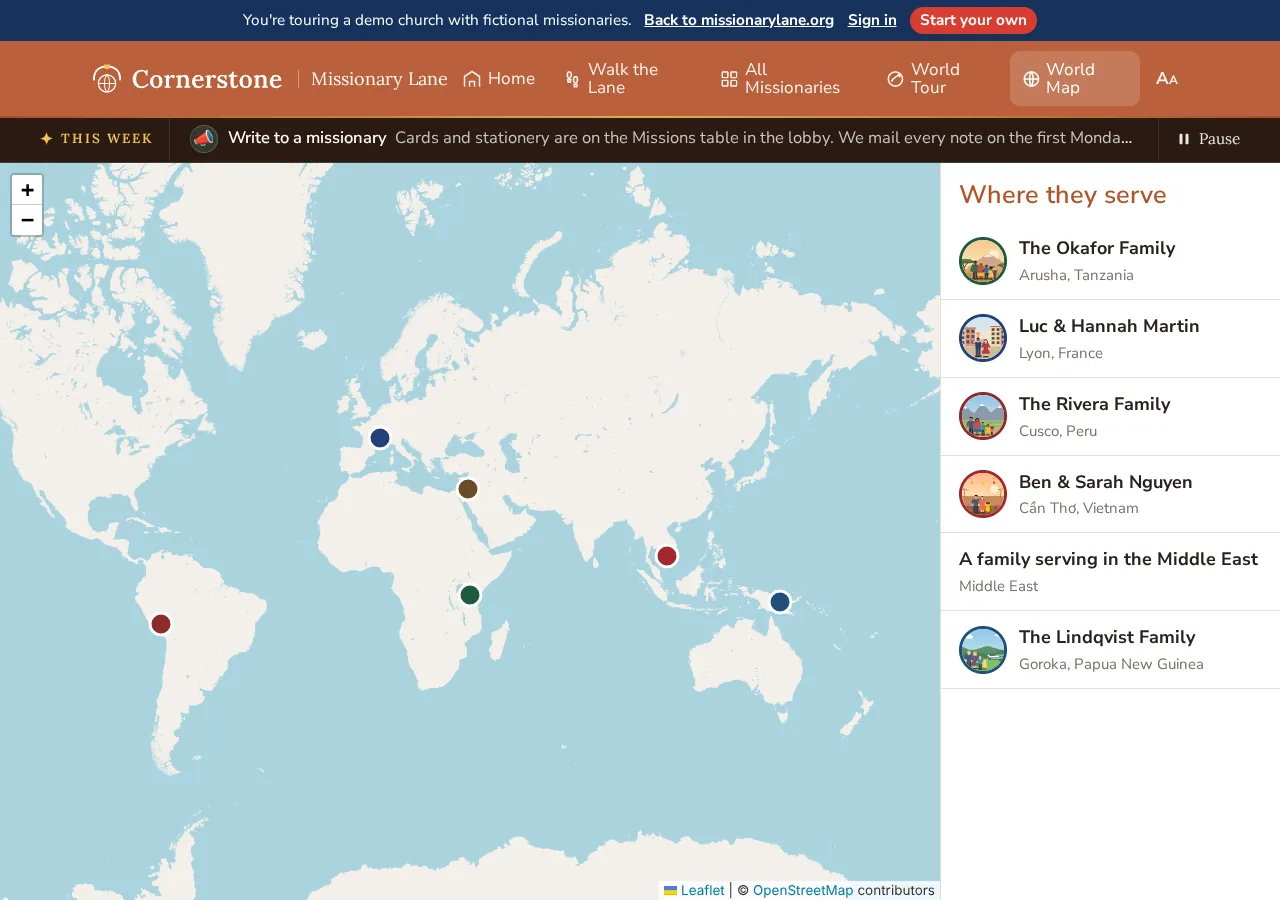
The Aa button in the top bar makes the text larger. Each press steps through three sizes, and the gallery remembers the choice on that device.
A kiosk #
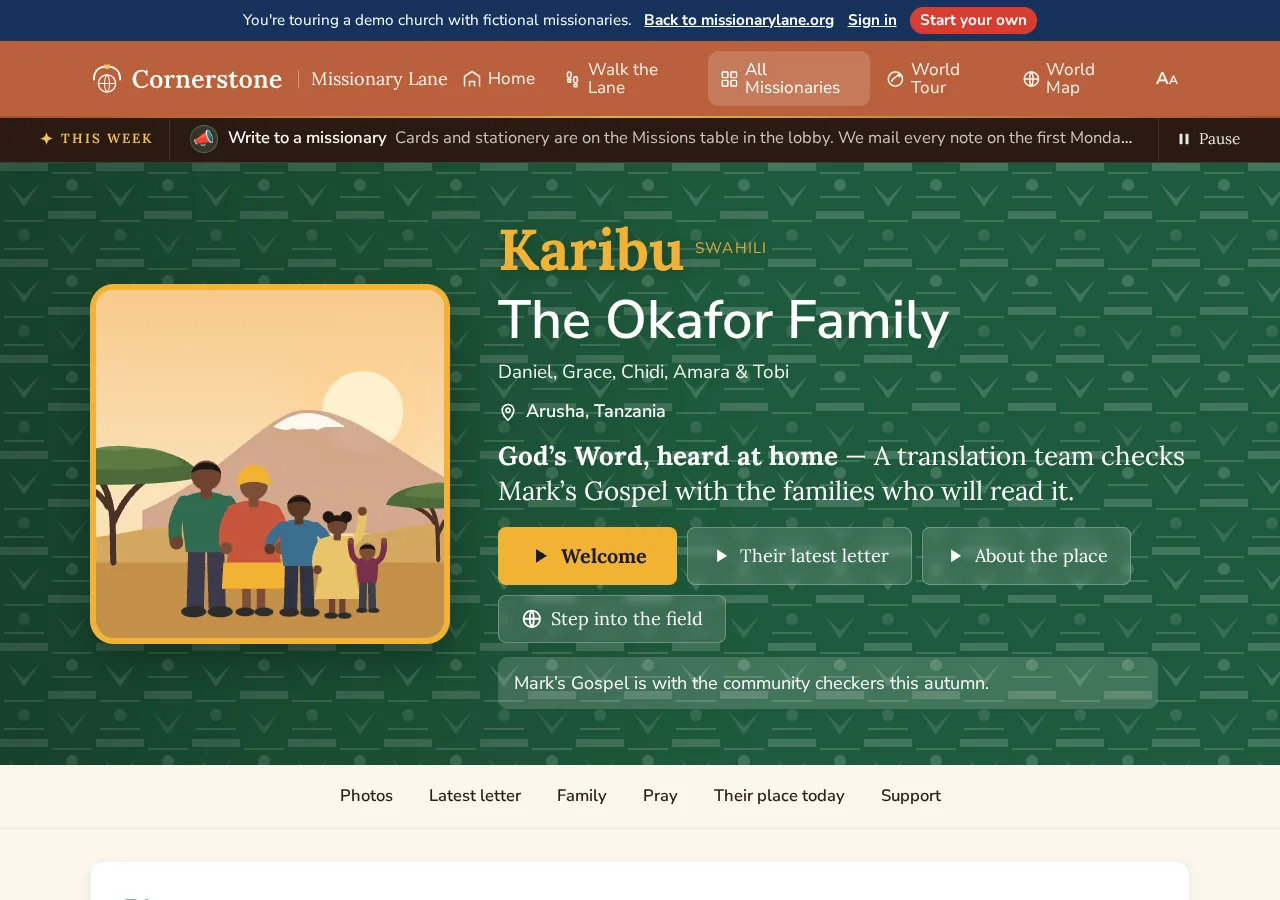
Every family or ministry has a kiosk page. What it shows depends on what the church has added and chosen to make public:
- A greeting in the local language, the family's names and where they serve.
- Welcome, Their latest letter and About the place buttons that read each part aloud. See Narration and voices.
- Step into the field, when the church has added a 360° view of the place. See Step into the field.
- Photos as a slideshow, with videos.
- Their latest letter: a summary and highlights first, then the whole letter and, if the church allows it, the pages as they were sent.
- Family, with birthdays (month and day only) when the church shows them.
- Pray: prayer requests and praises taken from the letter.
- Their place today: local time, the U.S. travel advisory, quick facts and recent news to pray about.
- Support: how to give or write to them, if the church shows it.
The buttons at the bottom go to the previous or next family. When you came from the walk or the World Tour, the middle button takes you back to the same place.
Walk the Lane #
Walk the Lane opens the church's chosen venue. When the church offers more than one, a switcher at the top reads Virtual hall · Our building. Opening a kiosk from any of them and pressing Back to the Lane returns you to the same spot.
The virtual hall #
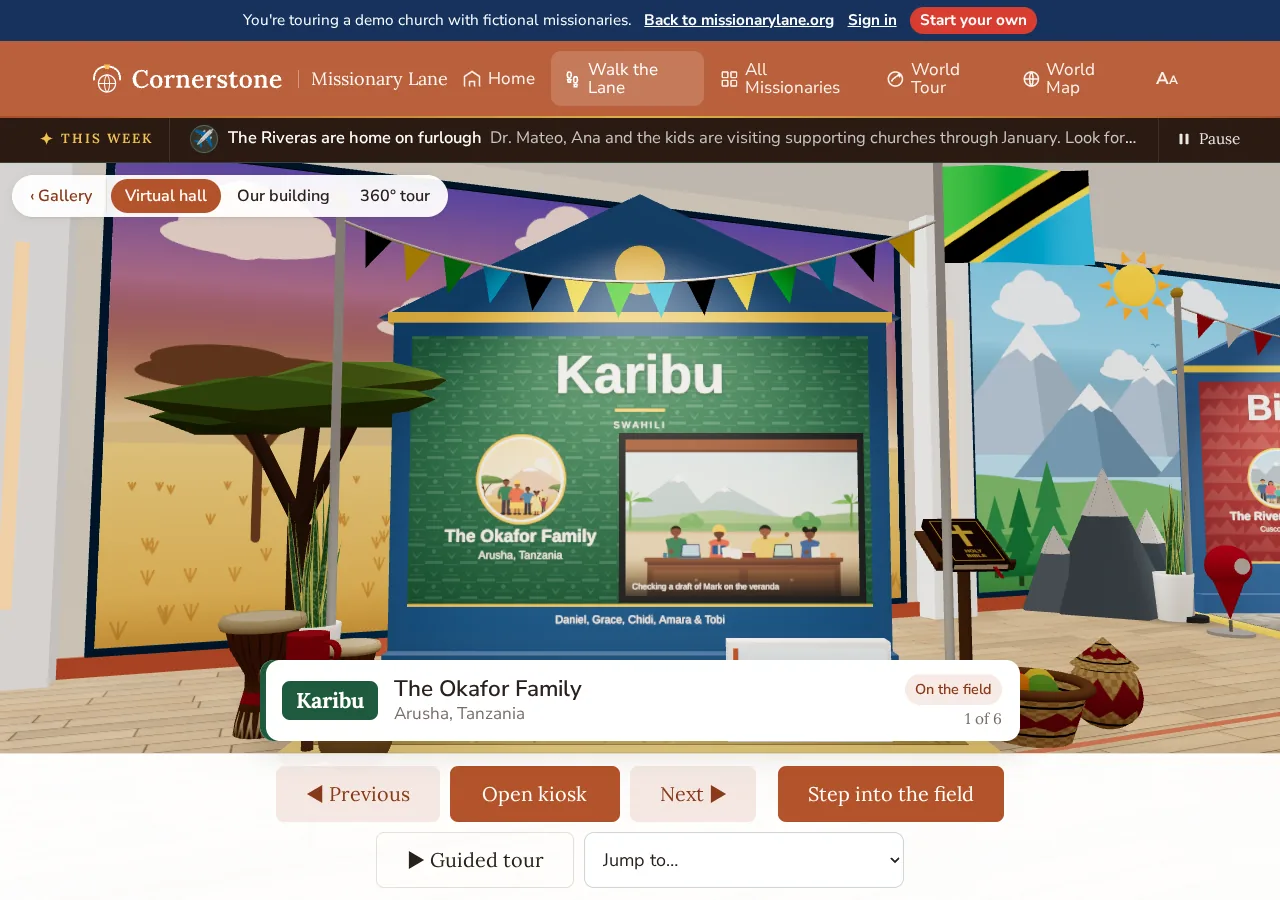
A lit, furnished hall with the church's name over the entrance and a booth for each family, decorated with their colours, flag and scenery. Booths appear in the order the church sets. Past 12 kiosks, the hall folds into aisles, and you choose an aisle to start in.
A welcome desk with the church's name stands by the entrance. When the church has added a welcome from its pastor, tap the desk or press Welcome from … at the entrance to read the church's missions statement and the pastor's letter and hear the pastor's recording. Recordings made with a computer-generated voice are marked AI voice.
| To | On a computer | On a phone or tablet |
|---|---|---|
| Go to the next or previous booth | → / ←, or D / A | Next and Previous |
| Walk forward or back along the lane | ↑ / ↓, or W / S | Tap the floor |
| Look around | Drag with the mouse | Swipe |
| Open the kiosk in front of you | Enter, or Open kiosk | Tap the booth, or Open kiosk |
| Let the hall walk you round | Guided tour. Press it again to stop. | |
| Go straight to a family or aisle | Jump to… | |
- VR headsets: when the browser supports it, an Enter VR button appears. Point at a booth and select it to walk there; select it again to hear the family's welcome.
- Quality: the hall picks a detailed look on capable computers and a lighter one on phones. If it can't start on a device, it uses a simpler flat look, and if 3D isn't available at all, you're offered the list instead.
- People who prefer reduced motion get shorter transitions.
Our building #
A 360° walk through the church's own halls that moves like the virtual hall. Each family's panel hangs on the walls and roll-up kiosks stand on the floor. Walk forward to glide on to the next spot, turn to look down another hallway, and open any family's kiosk on the way. The families in the current spot are listed at the bottom; the one in front of you is highlighted.
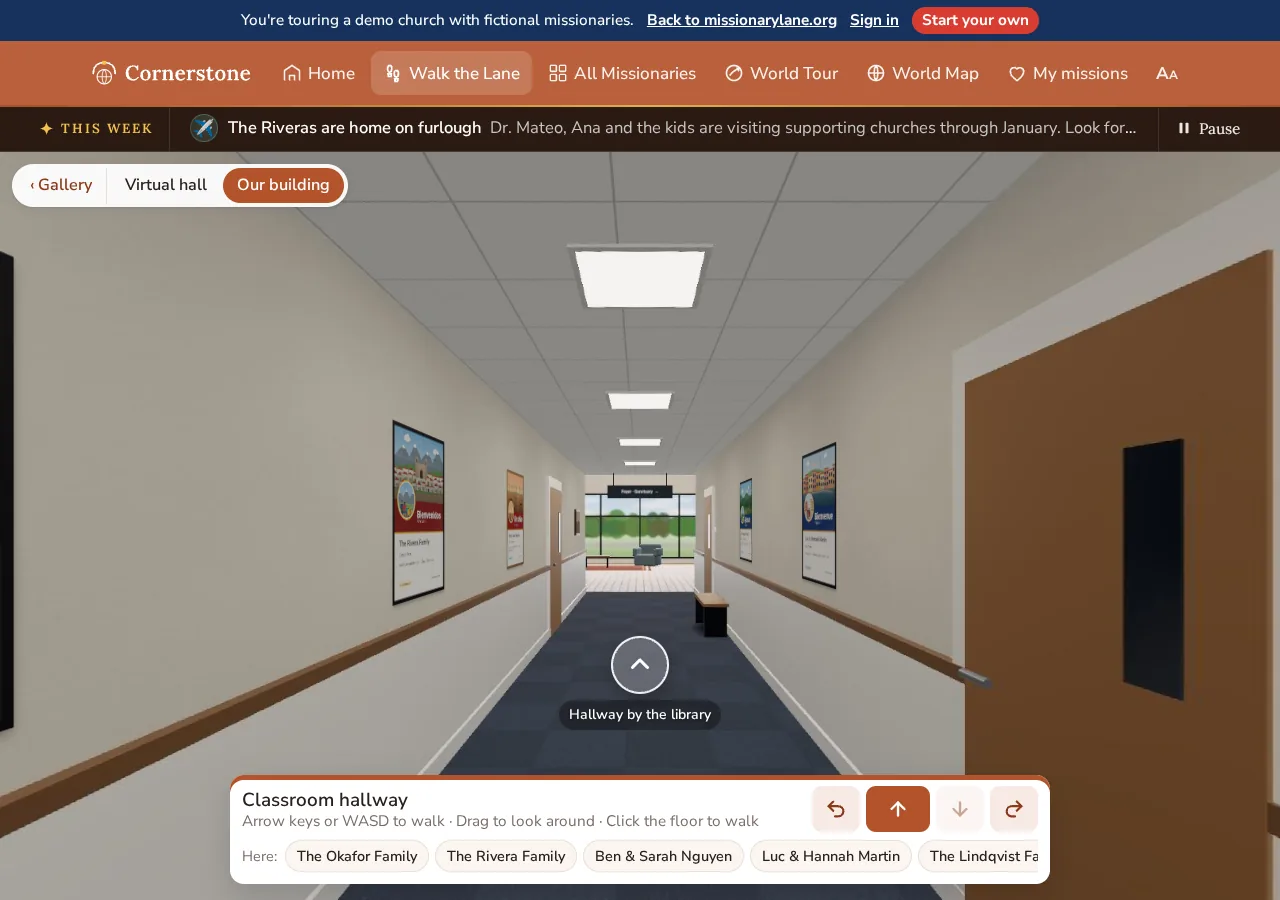
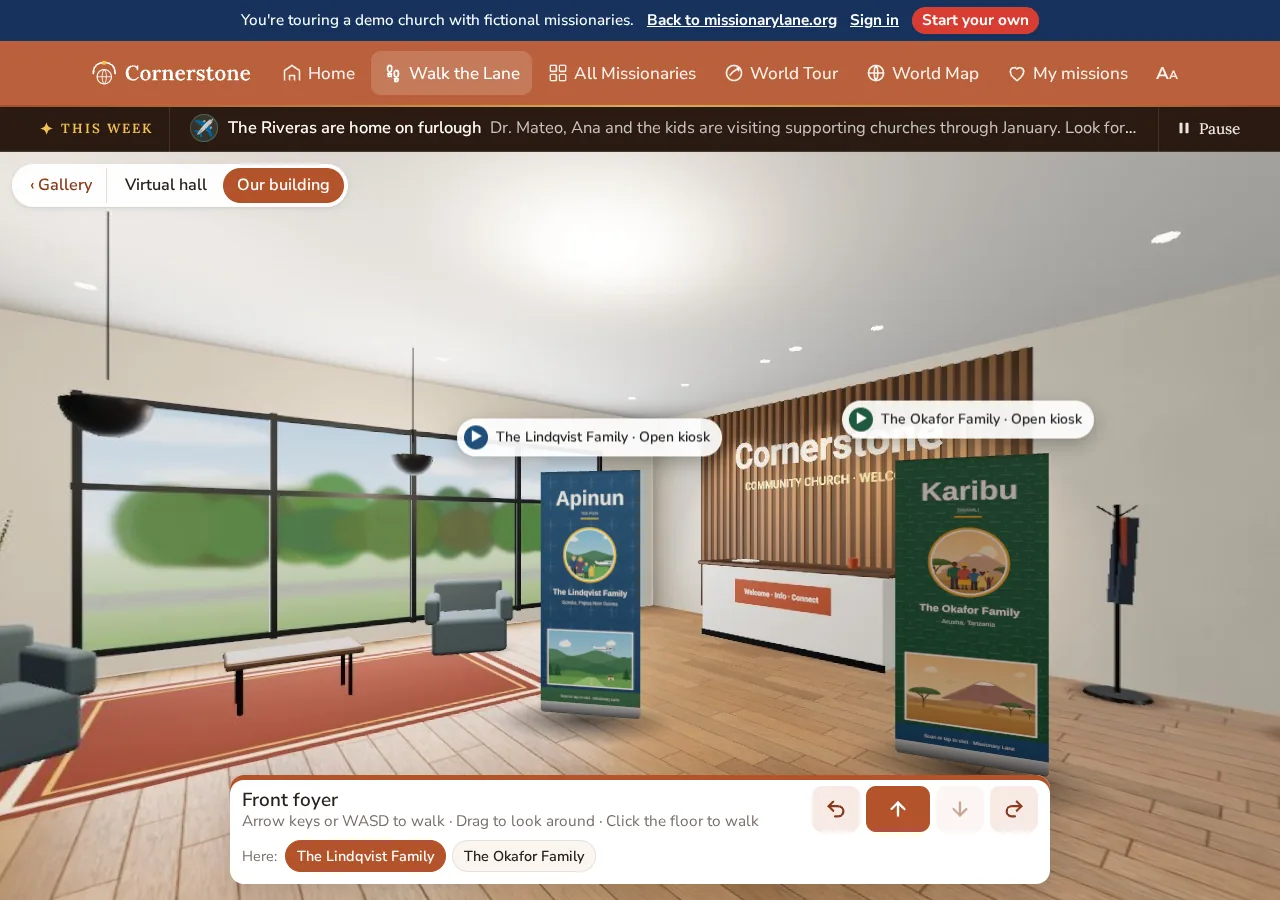
| To | On a computer | On a phone or tablet |
|---|---|---|
| Walk forward or back | ↑ / ↓, or W / S, or the arrow buttons | Swipe up or down, or the arrow buttons |
| Walk to a spot | Click or tap the floor toward it, or its round arrow | |
| Turn | Hold ← / →, or A / D, or the turn buttons | The turn buttons |
| Look around | Drag with the mouse | Drag |
| Open a family's kiosk | Enter for the one in front of you, or click it or its name | Tap the kiosk, its label or its name |
- When there's no way on in the direction you face, walking forward turns you toward the nearest way through.
- People who prefer reduced motion get a short fade from spot to spot instead of the glide.
- Older links to the “360° tour” or to building photos open Our building.
Our building: 3D scan Beta Planned #
Walking freely through a 3D scan of the church's building is listed as a beta option on the pricing page, but the scan viewer isn't built yet. Galleries don't show it today.
Step into the field #
Some kiosks open into a 360° view of the city or region where the family serves. Choose Step into the field on the kiosk page, or at the booth in the virtual hall, where a doorway opens in the booth first.
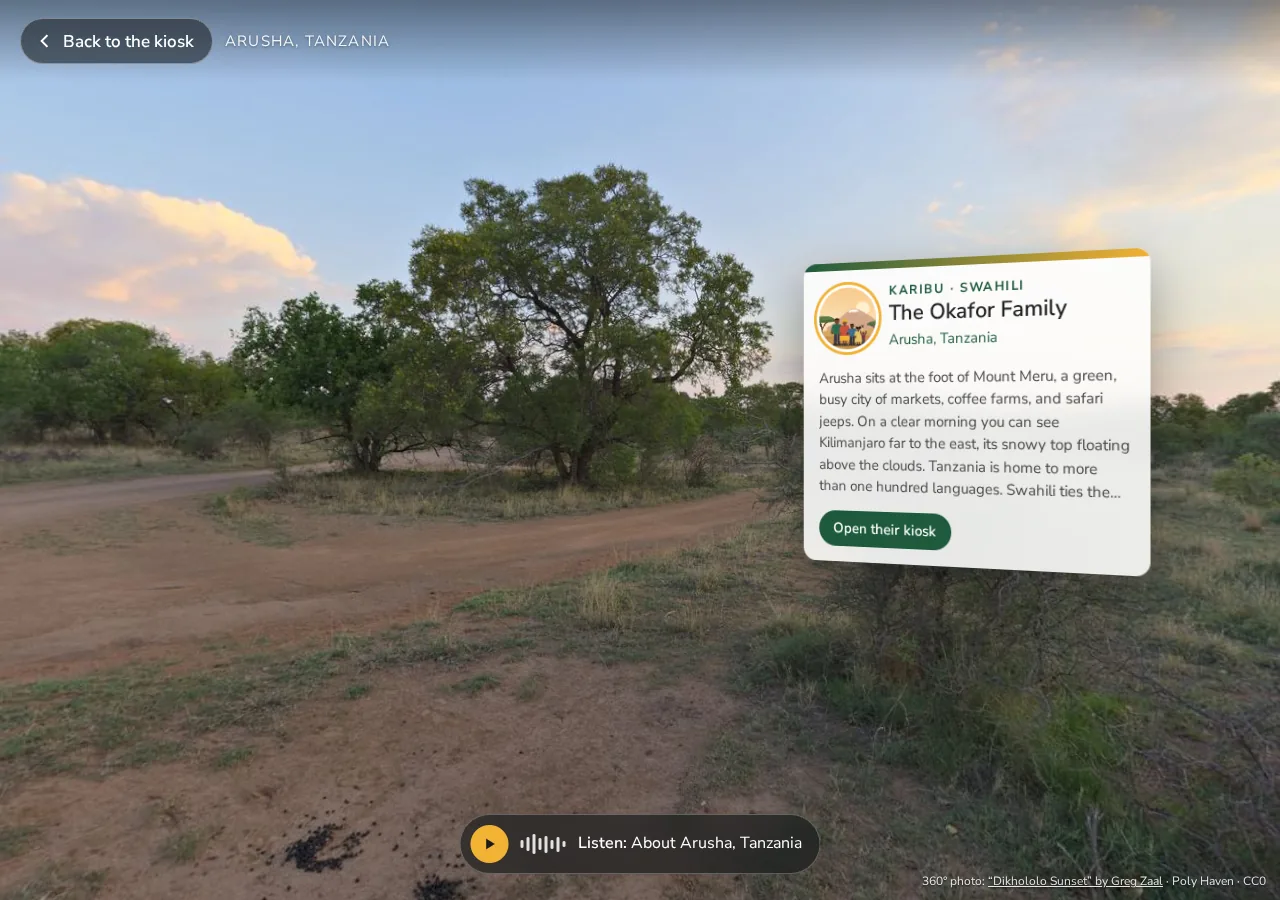
- Drag to look around. A card about the family floats in the view, or sits at the bottom on phones.
- Listen plays the spoken introduction to the place.
- Open their kiosk goes to the family's page; Back returns to where you were.
- The photo's credit line is always shown. Views come from the missionary's own 360° photo or from a public source such as Wikimedia Commons, Mapillary, Google Street View or Poly Haven.
- Field views never show a family's home or ministry address; churches use a city centre or a public landmark. Restricted families never have one.
World Tour #
The World Tour flies from the church to each family in turn, tells their story and pauses at each stop. Turn your sound on for narration; captions are available. Press Begin the tour to start.
The narration follows the journey:
- At home: how many missionary families the church supports, in how many countries, and the year it began supporting missionaries and the year its newest family joined.
- The journey, while the globe flies: the direction, the oceans and seas crossed, how many continents, where we land and roughly how far it is in miles. For example: “From Cusco, we head northeast across the Atlantic Ocean, over two continents, to Lyon, France, about 6,300 miles away.”
- The place: a few facts about the country, such as its people, capital and languages. The camera comes down over the country and outlines it.
- The family: “Welcome to the mission field of …”, with their greeting, their tagline and their status note.
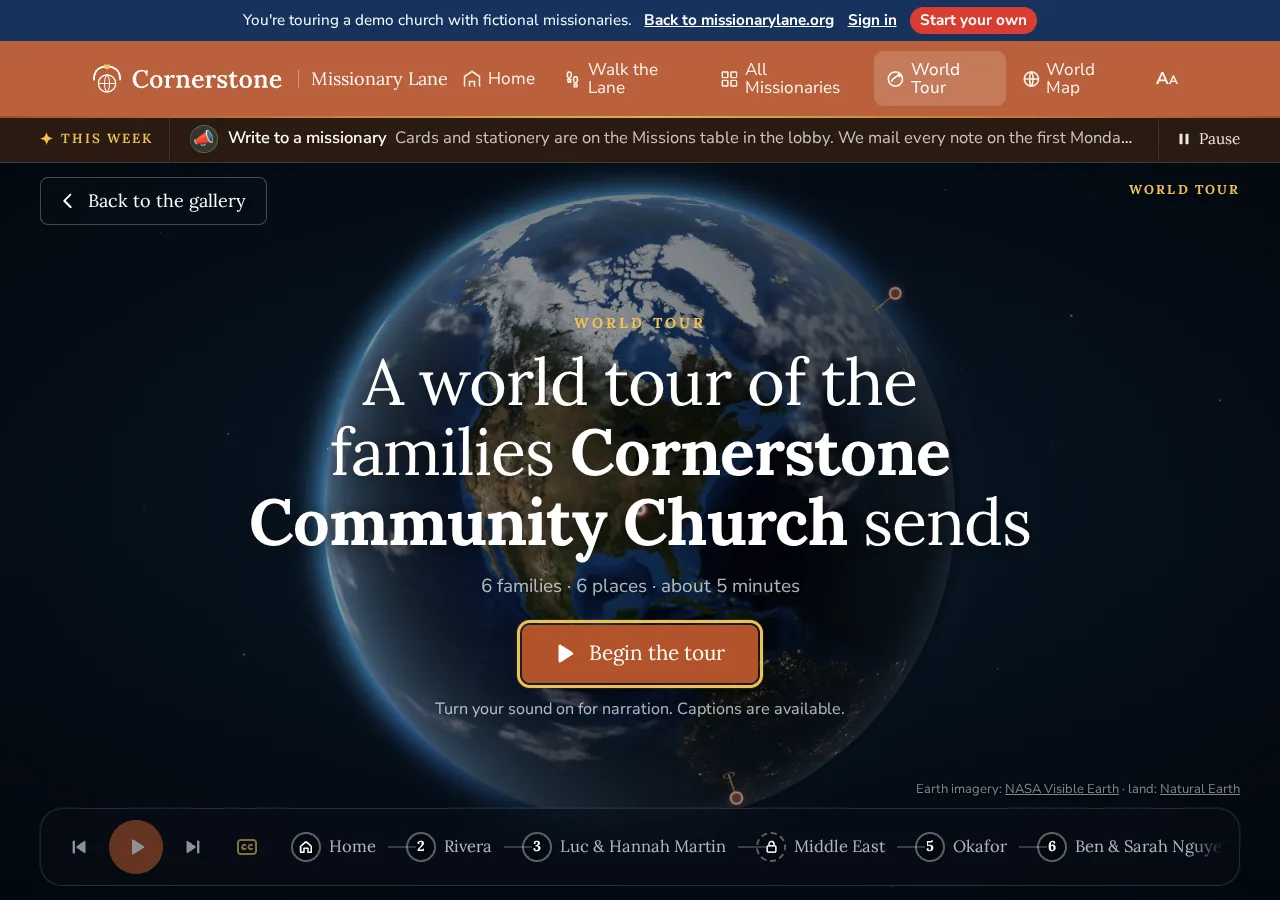
| Control | Button | Key |
|---|---|---|
| Previous or next stop | ⏮ / ⏭ | ← / → |
| Pause or play | ⏯ | Space |
| Captions on or off | CC | C |
| Go to a stop | The numbered strip along the bottom |
At each stop you can open the family's kiosk and return to the tour. The globe is drawn from public-domain NASA imagery, and the oceans, seas, continents and country outlines come from public-domain Natural Earth maps. Churches that add their own Google key can show Google's photorealistic 3D view instead: the flight ends high over the country, then the camera comes down over the city and circles it.
A restricted family's stop stays at region level: the camera doesn't zoom in, there's no outline, and the narration names only the region, never a country or city.
Narration and voices #
Each kiosk has up to three spoken parts: a Welcome, Their latest letter (a spoken summary of the newest newsletter) and About the place. The World Tour has its own narration in the church's voice, described above.
- When the church has recorded a part, you hear a natural human-sounding voice. A church can give a family its own narrator.
- When there's no recording yet, your own device reads the words with its built-in voice.
- Phones and some browsers only play sound after you tap something. If narration doesn't start, press its button again.
- Press the same button again to stop.
- Narration is a computer-generated voice, so the player, the listen buttons and the World Tour captions are labelled AI voice. Letter summaries and prayer requests that the AI read from a letter say AI-assisted summary, reviewed by the church.
Restricted missionaries #
Some missionaries serve where being named online could put them, or the people they serve, at risk. Their kiosk shows a made-up name chosen by the church, such as “A family serving in the Middle East”, and their region only.
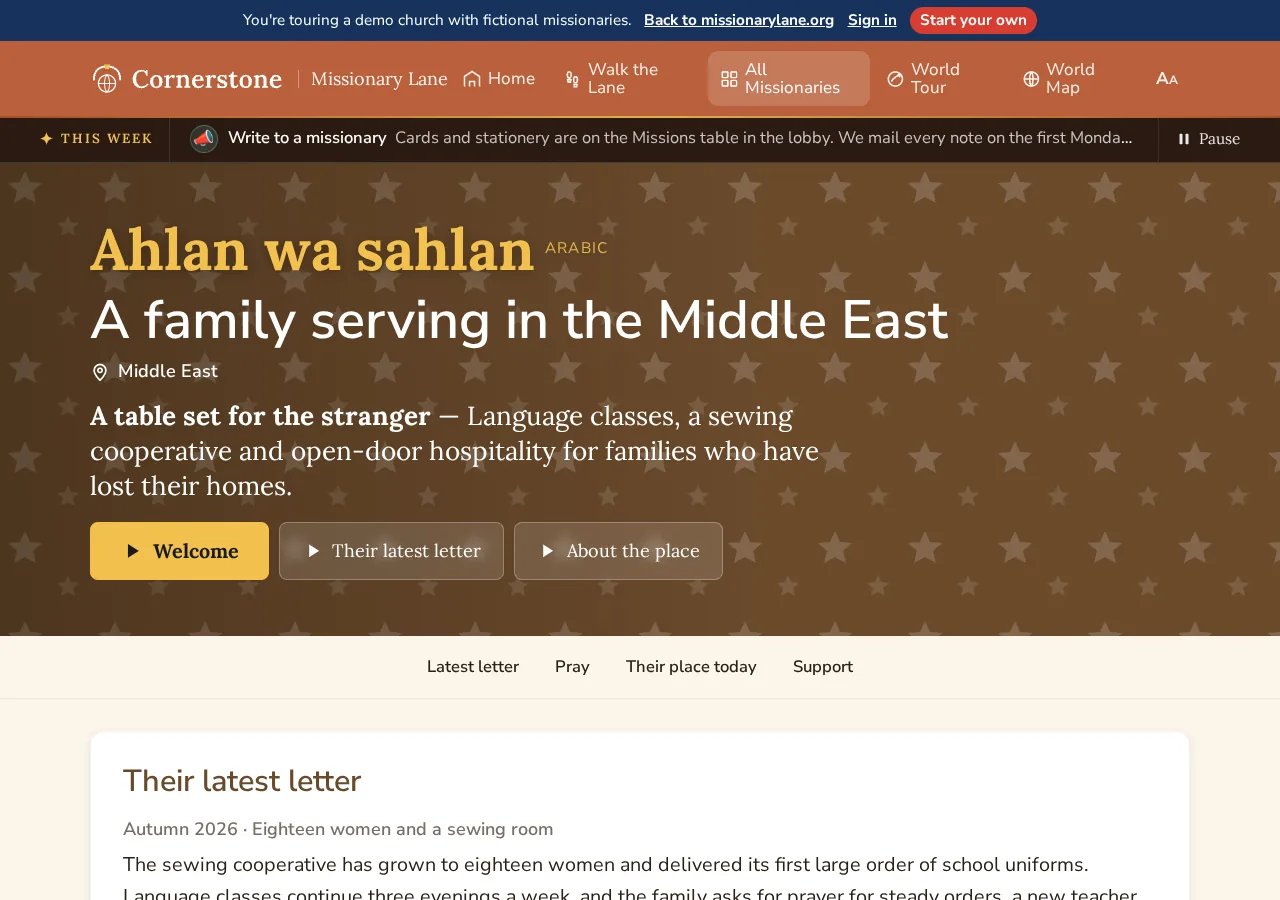
- It leaves out real names, family members, the town and country, photos, letter pages, contact details and the news briefing.
- Its web address is a random code, not the family's name.
- Its map pin is only roughly placed, or left off, and the World Tour shows only the region. There's no field view.
- The page says: “For their safety, some details about this family are not shown publicly.”
Please don't try to work out who a restricted family is, and don't share guesses online.